Docker Course #7: Multi-Stage Builds — Optimize Your Images
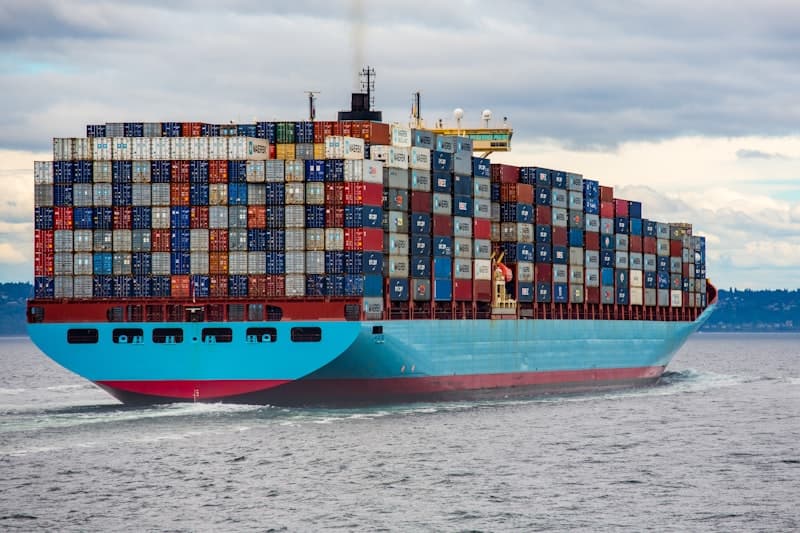
Welcome to the Docker Course - Part 7 of 10. In this article, you will learn how to use multi-stage builds to dramatically reduce your Docker image sizes, making them faster to deploy and more secure.

Source: Wikimedia Commons
Have you ever built a Docker image and noticed it was over 1 GB? That is a common problem when you include build tools, compilers, and development dependencies in your final image. Multi-stage builds solve this by separating the build environment from the runtime environment.
Why Image Size Matters
Before diving into multi-stage builds, let us understand why smaller images are important:
- Faster deployments: Smaller images transfer faster over the network, reducing deployment time
- Lower storage costs: Container registries charge for storage — smaller images save money
- Reduced attack surface: Fewer packages means fewer potential vulnerabilities
- Faster scaling: When a new container needs to start, it pulls the image faster
- Better CI/CD performance: Build pipelines run faster with smaller images
Here is a real-world comparison of image sizes for a simple Node.js application:
| Approach | Image Size | Notes |
|---|---|---|
Single-stage with node:20 |
~1.1 GB | Includes build tools, npm cache, dev dependencies |
Single-stage with node:20-slim |
~250 MB | Smaller base but still has build artifacts |
Multi-stage with node:20-alpine |
~80 MB | Only runtime dependencies, minimal base |
That is a 93% reduction in image size just by using multi-stage builds with an Alpine base!
The Multi-Stage Build Concept
A multi-stage build uses multiple FROM statements in a single Dockerfile. Each FROM starts a new build stage. You can selectively copy artifacts from one stage to another, leaving behind everything you do not need.
The basic pattern looks like this:
1# Stage 1: Build
2FROM node:20-alpine AS builder
3WORKDIR /app
4COPY package*.json ./
5RUN npm ci
6COPY . .
7RUN npm run build
8
9# Stage 2: Runtime (final image)
10FROM node:20-alpine AS runtime
11WORKDIR /app
12COPY --from=builder /app/dist ./dist
13COPY --from=builder /app/node_modules ./node_modules
14COPY --from=builder /app/package.json ./
15EXPOSE 3000
16CMD ["node", "dist/index.js"]
Key concepts:
FROM ... AS name- Names a build stage so you can reference it laterCOPY --from=name- Copies files from a named stage into the current stage- Only the last stage becomes the final image
- Intermediate stages are discarded — their layers do not end up in the final image
COPY --from=0 to reference stages by index (zero-based). However, named stages are clearer and less error-prone.
FROM ... AS and COPY --from Explained
Let us look at these two key instructions in more detail.
FROM ... AS
The AS keyword gives a name to a build stage. You can have as many stages as you need:
1# Stage 1: Install dependencies
2FROM node:20-alpine AS deps
3WORKDIR /app
4COPY package*.json ./
5RUN npm ci --only=production
6
7# Stage 2: Build the application
8FROM node:20-alpine AS builder
9WORKDIR /app
10COPY package*.json ./
11RUN npm ci
12COPY . .
13RUN npm run build
14
15# Stage 3: Final runtime image
16FROM node:20-alpine AS runner
17WORKDIR /app
18ENV NODE_ENV=production
19
20# Copy only production dependencies from stage 1
21COPY --from=deps /app/node_modules ./node_modules
22
23# Copy only build output from stage 2
24COPY --from=builder /app/dist ./dist
25COPY --from=builder /app/package.json ./
26
27USER node
28EXPOSE 3000
29CMD ["node", "dist/index.js"]
COPY --from
The --from flag specifies which stage to copy from. It can reference:
- A named stage:
COPY --from=builder /app/dist ./dist - A stage index:
COPY --from=0 /app/dist ./dist - An external image:
COPY --from=nginx:alpine /etc/nginx/nginx.conf /etc/nginx/
1# Copy from an external image (no need to define a stage)
2FROM alpine:3.19
3COPY --from=docker/buildx-bin:latest /buildx /usr/libexec/docker/cli-plugins/docker-buildx
4COPY --from=docker:latest /usr/local/bin/docker /usr/local/bin/docker
Practical Examples by Language
Let us see multi-stage builds in action for the most popular programming languages.
Java / Spring Boot
Java applications are notorious for large images because the JDK includes compilation tools. Multi-stage builds let us use the JDK for building and the JRE for running:
1# Stage 1: Build with Maven
2FROM eclipse-temurin:21-jdk-alpine AS builder
3WORKDIR /app
4
5# Copy Maven wrapper and pom.xml first (better caching)
6COPY mvnw pom.xml ./
7COPY .mvn .mvn
8RUN chmod +x mvnw && ./mvnw dependency:go-offline -B
9
10# Copy source code and build
11COPY src ./src
12RUN ./mvnw package -DskipTests -B
13
14# Extract Spring Boot layers for better caching
15RUN java -Djarmode=layertools -jar target/*.jar extract --destination target/extracted
16
17# Stage 2: Runtime with JRE only
18FROM eclipse-temurin:21-jre-alpine AS runtime
19WORKDIR /app
20
21# Create non-root user
22RUN addgroup -S appgroup && adduser -S appuser -G appgroup
23
24# Copy Spring Boot layers (better Docker layer caching)
25COPY --from=builder /app/target/extracted/dependencies/ ./
26COPY --from=builder /app/target/extracted/spring-boot-loader/ ./
27COPY --from=builder /app/target/extracted/snapshot-dependencies/ ./
28COPY --from=builder /app/target/extracted/application/ ./
29
30USER appuser
31EXPOSE 8080
32ENTRYPOINT ["java", "org.springframework.boot.loader.launch.JarLauncher"]
Size comparison for a Spring Boot application:
| Approach | Size |
|---|---|
| Single-stage with JDK | ~580 MB |
| Multi-stage with JRE Alpine | ~180 MB |
Node.js
For Node.js apps, we separate dependency installation and building from the final runtime:
1# Stage 1: Install all dependencies and build
2FROM node:20-alpine AS builder
3WORKDIR /app
4
5COPY package*.json ./
6RUN npm ci
7
8COPY . .
9RUN npm run build
10RUN npm prune --production
11
12# Stage 2: Runtime
13FROM node:20-alpine AS runtime
14WORKDIR /app
15ENV NODE_ENV=production
16
17# Create non-root user
18RUN addgroup -S appgroup && adduser -S appuser -G appgroup
19
20# Copy only what we need
21COPY --from=builder /app/dist ./dist
22COPY --from=builder /app/node_modules ./node_modules
23COPY --from=builder /app/package.json ./
24
25USER appuser
26EXPOSE 3000
27CMD ["node", "dist/index.js"]
Python
For Python, we can use a builder stage to compile wheels and install them in the final stage:
1# Stage 1: Build dependencies
2FROM python:3.12-slim AS builder
3WORKDIR /app
4
5# Install build dependencies
6RUN apt-get update && apt-get install -y --no-install-recommends \
7    gcc \
8    libpq-dev \
9    && rm -rf /var/lib/apt/lists/*
10
11COPY requirements.txt .
12RUN pip install --no-cache-dir --prefix=/install -r requirements.txt
13
14# Stage 2: Runtime
15FROM python:3.12-slim AS runtime
16WORKDIR /app
17
18# Copy installed packages from builder
19COPY --from=builder /install /usr/local
20
21# Install only runtime system libraries
22RUN apt-get update && apt-get install -y --no-install-recommends \
23    libpq5 \
24    && rm -rf /var/lib/apt/lists/*
25
26# Create non-root user
27RUN useradd --create-home --shell /bin/bash appuser
28
29COPY . .
30
31USER appuser
32EXPOSE 8000
33CMD ["uvicorn", "main:app", "--host", "0.0.0.0", "--port", "8000"]
Go
Go produces statically linked binaries, so we can use the tiniest possible final image — even scratch (an empty image):
1# Stage 1: Build
2FROM golang:1.22-alpine AS builder
3WORKDIR /app
4
5COPY go.mod go.sum ./
6RUN go mod download
7
8COPY . .
9RUN CGO_ENABLED=0 GOOS=linux go build -ldflags="-s -w" -o /app/server ./cmd/server
10
11# Stage 2: Runtime (scratch = empty image!)
12FROM scratch
13COPY --from=builder /app/server /server
14COPY --from=builder /etc/ssl/certs/ca-certificates.crt /etc/ssl/certs/
15
16EXPOSE 8080
17ENTRYPOINT ["/server"]
Size comparison for a Go web server:
| Approach | Size |
|---|---|
Single-stage with golang:1.22 |
~850 MB |
Multi-stage with scratch |
~12 MB |
scratch means there is no shell, no package manager, and no debugging tools in the final image. This is great for security and size but can make debugging harder. Consider gcr.io/distroless/static as an alternative that includes CA certificates and timezone data.
Alpine vs Slim vs Full Base Images
Choosing the right base image is as important as multi-stage builds. Here is a comparison:
| Base Image | Size | Package Manager | Best For |
|---|---|---|---|
node:20 (full) |
~1.1 GB | apt | Development, CI build stage |
node:20-slim |
~200 MB | apt (minimal) | Runtime with Debian compatibility |
node:20-alpine |
~130 MB | apk | Smallest runtime, most use cases |
gcr.io/distroless/nodejs20 |
~120 MB | None | Maximum security (no shell) |
musl libc instead of glibc. Most applications work fine, but some native Node.js modules or Python packages may have compatibility issues. If you run into problems, use the -slim variant instead.
BuildKit Features
Docker BuildKit is the modern build engine that comes with Docker. It provides several features that complement multi-stage builds:
Enabling BuildKit
1# BuildKit is enabled by default in Docker Desktop
2# For Docker Engine, set the environment variable:
3export DOCKER_BUILDKIT=1
4
5# Or use docker buildx
6docker buildx build -t myapp:latest .
Cache mounts
Cache mounts keep package manager caches between builds, speeding up dependency installation:
1# syntax=docker/dockerfile:1
2FROM node:20-alpine AS builder
3WORKDIR /app
4
5COPY package*.json ./
6
7# Cache npm packages between builds
8RUN --mount=type=cache,target=/root/.npm \
9    npm ci
10
11COPY . .
12RUN npm run build1# syntax=docker/dockerfile:1
2FROM python:3.12-slim AS builder
3WORKDIR /app
4
5COPY requirements.txt .
6
7# Cache pip packages between builds
8RUN --mount=type=cache,target=/root/.cache/pip \
9 pip install -r requirements.txtSecret mounts
Pass secrets at build time without embedding them in image layers:
1# syntax=docker/dockerfile:1
2FROM node:20-alpine AS builder
3WORKDIR /app
4
5# Secret is available only during this RUN step
6RUN --mount=type=secret,id=npmrc,target=/root/.npmrc \
7 npm ci1# Build with a secret
2docker build --secret id=npmrc,src=$HOME/.npmrc -t myapp:latest .Build targets
Build only a specific stage instead of the entire Dockerfile:
1# Build only the builder stage (useful for CI testing)
2docker build --target builder -t myapp:test .
3
4# Build the final stage
5docker build --target runtime -t myapp:latest .
Comparing Image Sizes Before and After
Let us do a hands-on comparison. Create a simple Express.js application and build it both ways:
1// server.js
2const express = require('express');
3const app = express();
4
5app.get('/', (req, res) => {
6  res.json({ message: 'Hello from Docker multi-stage build!' });
7});
8
9app.get('/health', (req, res) => {
10  res.json({ status: 'healthy', timestamp: new Date().toISOString() });
11});
12
13const PORT = process.env.PORT || 3000;
14app.listen(PORT, () => {
15  console.log('Server running on port ' + PORT);
16});1{
2 "name": "multistage-demo",
3 "version": "1.0.0",
4 "main": "server.js",
5 "scripts": {
6 "start": "node server.js"
7 },
8 "dependencies": {
9 "express": "^4.18.2"
10 }
11}Single-stage Dockerfile (the "before"):
1# Dockerfile.single - NOT optimized
2FROM node:20
3WORKDIR /app
4COPY package*.json ./
5RUN npm install
6COPY . .
7EXPOSE 3000
8CMD ["node", "server.js"]
Multi-stage Dockerfile (the "after"):
1# Dockerfile.multi - Optimized with multi-stage
2FROM node:20-alpine AS builder
3WORKDIR /app
4COPY package*.json ./
5RUN npm ci --only=production
6
7FROM node:20-alpine AS runtime
8WORKDIR /app
9RUN addgroup -S appgroup && adduser -S appuser -G appgroup
10
11COPY --from=builder /app/node_modules ./node_modules
12COPY server.js package.json ./
13
14USER appuser
15EXPOSE 3000
16CMD ["node", "server.js"]1# Build both images
2docker build -f Dockerfile.single -t demo:single .
3docker build -f Dockerfile.multi -t demo:multi .
4
5# Compare sizes
6docker images | grep demo
7
8# Expected output:
9# demo single abc123 1.1GB
10# demo multi def456 135MBdocker history <image> to see exactly which layers contribute the most to your image size. This helps identify what to optimize.
Summary and Next Steps
In this article, you learned how to use multi-stage builds to create smaller, faster, and more secure Docker images. Here is what we covered:
- Why size matters: Faster deploys, lower costs, reduced attack surface
- Multi-stage concept: Multiple FROM statements, COPY --from to cherry-pick artifacts
- Language examples: Java/Spring Boot, Node.js, Python, and Go
- Base image comparison: Full vs slim vs Alpine vs distroless
- BuildKit features: Cache mounts, secret mounts, and build targets
- Size comparison: Real before/after measurements showing dramatic improvements
For more details, check the official multi-stage builds documentation: https://docs.docker.com/build/building/multi-stage/
Comments
Sign in to leave a comment
No comments yet. Be the first!
Related Articles
Stay updated
Get notified when I publish new articles in English. No spam, unsubscribe anytime.