
Docker Course #4: Docker Volumes — Persistent Data
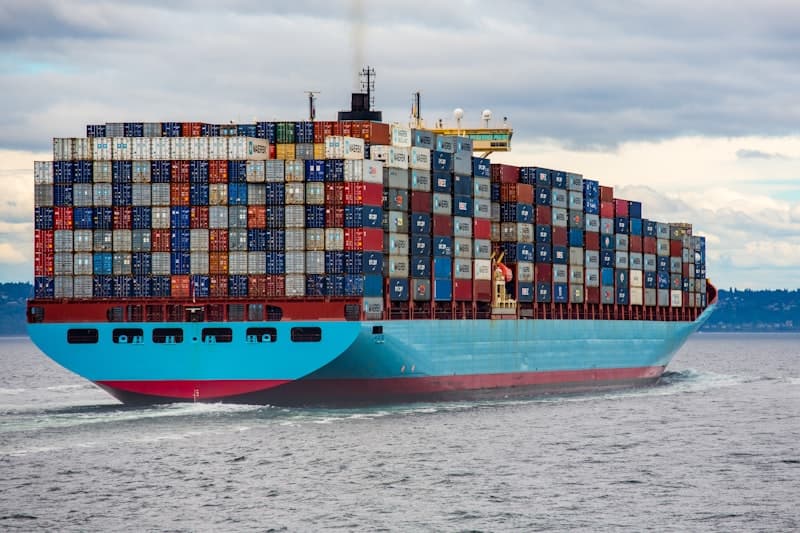
Welcome to the Docker Course - Part 4 of 10

Source: Wikimedia Commons
Welcome back to the Docker Course! This is article 4 of 10. In the previous articles, we installed Docker, explored images, and learned to build our own with Dockerfiles. Now we face a critical question: what happens to your data when a container is deleted?
By default, all data written inside a container is lost when the container is removed. In this article, you will learn how Docker volumes solve this problem, the different types of mounts available, and how to work with persistent data in real-world scenarios like databases.
Why Containers Lose Data
To understand why volumes are necessary, you need to understand how the Docker storage system works.
When you run a container, Docker creates a thin writable layer on top of the image's read-only layers. Any files you create, modify, or delete inside the container are written to this writable layer. However:
- The writable layer is tied to the container — when the container is removed, the layer is gone
- The writable layer uses a storage driver that is slower than native filesystem access
- You cannot easily share data between containers using the writable layer
Let's prove this with a simple experiment:
1# Create a container and write a file inside it
2docker run -d --name test-data alpine sh -c "echo 'Important data!' > /data.txt && sleep 3600"
3
4# Verify the file exists
5docker exec test-data cat /data.txt
6# Output: Important data!
7
8# Stop and remove the container
9docker rm -f test-data
10
11# Create a new container from the same image
12docker run --name test-data-2 alpine cat /data.txt
13# Error: cat: can't open '/data.txt': No such file or directory
14
15# The data is gone forever!
16docker rm test-data-2
This is a fundamental problem for applications like databases, file uploads, logs, or any stateful application. Docker volumes are the solution.
Types of Docker Mounts
Docker provides three ways to persist data outside the container's writable layer:
1. Named Volumes (Recommended)
Named volumes are managed by Docker. Docker creates a directory on the host filesystem and manages its lifecycle. You refer to the volume by name, not by path.
- Best for: databases, application data, shared data between containers
- Docker manages the location on disk
- Easy to backup, migrate, and list
- Works on all platforms (Linux, macOS, Windows)
2. Bind Mounts
Bind mounts map a specific directory on the host to a directory inside the container. You specify the exact path.
- Best for: development (live code reloading), configuration files
- Depends on the host filesystem structure
- Less portable than named volumes
- The host directory must exist before mounting
3. tmpfs Mounts
tmpfs mounts store data in memory only. The data is never written to disk and disappears when the container stops.
- Best for: sensitive data (secrets, tokens) that should not persist on disk
- Only available on Linux hosts
- Very fast since it uses RAM
Working with Named Volumes
Let's learn the essential volume commands and see named volumes in action:
1# Create a named volume
2docker volume create my-data
3
4# List all volumes
5docker volume ls
6
7# Inspect a volume (see where it's stored on disk)
8docker volume inspect my-data
9# Output includes "Mountpoint": "/var/lib/docker/volumes/my-data/_data"
10
11# Run a container with the volume mounted
12docker run -d --name app1 \
13  -v my-data:/app/data \
14  alpine sh -c "echo 'Hello from app1' > /app/data/message.txt && sleep 3600"
15
16# Verify the file was written
17docker exec app1 cat /app/data/message.txt
18# Output: Hello from app1
19
20# Remove the container
21docker rm -f app1
22
23# The data survives! Run a new container with the same volume
24docker run --rm -v my-data:/app/data alpine cat /app/data/message.txt
25# Output: Hello from app1
26
27# Remove a volume (only works if no containers are using it)
28docker volume rm my-data
29
30# Remove all unused volumes
31docker volume prunedocker volume prune removes all volumes not currently attached to a running container. This includes volumes from stopped containers. Always double-check before running this command.
Working with Bind Mounts
Bind mounts are especially useful during development. Let's create a simple example:
1# Create a project directory on your host
2mkdir -p ~/docker-demo && cd ~/docker-demo
3echo '<h1>Hello from bind mount!</h1>' > index.html
4
5# Mount it into an Nginx container
6docker run -d --name web \
7  -p 8080:80 \
8  -v $(pwd):/usr/share/nginx/html:ro \
9  nginx
10
11# Visit http://localhost:8080 — you will see your HTML page
12
13# Edit the file on your host
14echo '<h1>Updated content!</h1>' > index.html
15
16# Refresh the browser — changes appear instantly!
17
18# Clean up
19docker rm -f web
The :ro flag at the end makes the mount read-only inside the container, which is a good security practice when the container only needs to read the files.
Bind Mount Syntax: -v vs --mount
Docker offers two syntaxes for mounting. The newer --mount syntax is more explicit and recommended:
1# Classic -v syntax
2docker run -v /host/path:/container/path:ro my-image
3
4# Modern --mount syntax (recommended for clarity)
5docker run --mount type=bind,source=/host/path,target=/container/path,readonly my-image
6
7# Named volume with --mount
8docker run --mount type=volume,source=my-vol,target=/app/data my-image
9
10# tmpfs with --mount
11docker run --mount type=tmpfs,target=/app/secrets,tmpfs-size=100m my-image
Sharing Data Between Containers
Named volumes can be shared between multiple containers, which is useful for scenarios like a web server reading files uploaded by another service:
1# Create a shared volume
2docker volume create shared-data
3
4# Container 1: writes data
5docker run -d --name writer \
6  -v shared-data:/data \
7  alpine sh -c "while true; do date >> /data/log.txt; sleep 5; done"
8
9# Container 2: reads the same data
10docker run --rm -v shared-data:/data alpine tail -5 /data/log.txt
11
12# Both containers see the same files!
13
14# Clean up
15docker rm -f writer
16docker volume rm shared-dataPractical Example: PostgreSQL with Persistent Data
One of the most common use cases for volumes is running databases. Let's set up PostgreSQL with persistent data that survives container restarts and removals:
1# Create a named volume for PostgreSQL data
2docker volume create pgdata
3
4# Run PostgreSQL with the volume
5docker run -d --name my-postgres \
6  -e POSTGRES_USER=admin \
7  -e POSTGRES_PASSWORD=secretpass123 \
8  -e POSTGRES_DB=myapp \
9  -v pgdata:/var/lib/postgresql/data \
10  -p 5432:5432 \
11  postgres:16-alpine
12
13# Wait a moment for PostgreSQL to initialize, then create a table and insert data
14docker exec -it my-postgres psql -U admin -d myapp -c "
15  CREATE TABLE users (id SERIAL PRIMARY KEY, name VARCHAR(100), email VARCHAR(100));
16  INSERT INTO users (name, email) VALUES ('Alice', '[email protected]');
17  INSERT INTO users (name, email) VALUES ('Bob', '[email protected]');
18  SELECT * FROM users;
19"
20
21# Verify the data is there
22docker exec -it my-postgres psql -U admin -d myapp -c "SELECT * FROM users;"
23
24# Now remove the container completely
25docker rm -f my-postgres
26
27# Create a brand new container with the same volume
28docker run -d --name my-postgres-2 \
29  -e POSTGRES_USER=admin \
30  -e POSTGRES_PASSWORD=secretpass123 \
31  -e POSTGRES_DB=myapp \
32  -v pgdata:/var/lib/postgresql/data \
33  -p 5432:5432 \
34  postgres:16-alpine
35
36# The data is still there!
37docker exec -it my-postgres-2 psql -U admin -d myapp -c "SELECT * FROM users;"
38# id | name  | email
39# ----+-------+------------------
40#   1 | Alice | [email protected]
41#   2 | Bob   | [email protected]
42
43# Clean up
44docker rm -f my-postgres-2Backup and Restore Volumes
Since named volumes are managed by Docker, you cannot simply copy files from the host. Instead, use a temporary container to access the volume data:
1# Backup: Create a tar archive of the volume contents
2docker run --rm \
3  -v pgdata:/source:ro \
4  -v $(pwd):/backup \
5  alpine tar czf /backup/pgdata-backup.tar.gz -C /source .
6
7# The backup file is now in your current directory
8ls -lh pgdata-backup.tar.gz
9
10# Restore: Extract the tar archive into a new volume
11docker volume create pgdata-restored
12
13docker run --rm \
14  -v pgdata-restored:/target \
15  -v $(pwd):/backup:ro \
16  alpine tar xzf /backup/pgdata-backup.tar.gz -C /target
17
18# Verify by running PostgreSQL with the restored volume
19docker run -d --name pg-restored \
20  -e POSTGRES_USER=admin \
21  -e POSTGRES_PASSWORD=secretpass123 \
22  -e POSTGRES_DB=myapp \
23  -v pgdata-restored:/var/lib/postgresql/data \
24  -p 5432:5432 \
25  postgres:16-alpine
26
27# Check the data
28docker exec -it pg-restored psql -U admin -d myapp -c "SELECT * FROM users;"
29
30# Clean up
31docker rm -f pg-restored
Volumes in Dockerfiles
You can declare volumes in a Dockerfile using the VOLUME instruction. This creates an anonymous volume when the container starts:
1FROM postgres:16-alpine
2
3# Declare that this path should be a volume
4VOLUME /var/lib/postgresql/data
5
6# Docker automatically creates an anonymous volume at this path
7# when running the container without an explicit -v flag
However, it is generally better to specify volumes explicitly at runtime with -v or --mount, because anonymous volumes are harder to manage and back up.
For the complete reference on Docker storage and volumes, see the official Docker storage documentation.
Summary
In this fourth article of the Docker Course, we covered:
- Why containers lose data — the writable layer is ephemeral
- Three types of mounts: named volumes, bind mounts, and tmpfs
- Named volume commands: create, ls, inspect, rm, prune
- Bind mounts for development workflows with live reloading
- Sharing data between multiple containers with shared volumes
- PostgreSQL with persistent data — a real-world practical example
- Backup and restore strategies for volume data
- The -v vs --mount syntax and when to use each
In the next article (Part 5 of 10), we will explore Docker networking — how containers communicate with each other and the outside world using bridges, custom networks, and DNS resolution. See you there!
Comments
Sign in to leave a comment
No comments yet. Be the first!
Related Articles
Stay updated
Get notified when I publish new articles in English. No spam, unsubscribe anytime.