Docker Course #2: Docker Images — Pull, Inspect and Docker Hub
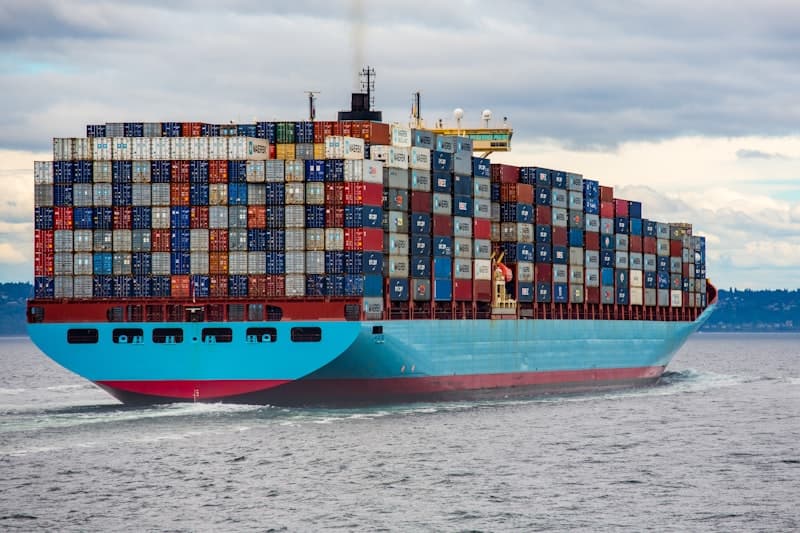
Welcome to the Docker Course - Part 2 of 10

Source: Wikimedia Commons
Welcome back to the Docker Course! This is article 2 of 10. In the previous article, we installed Docker and ran our first containers. Now it is time to understand one of Docker's most important concepts: images.
Images are the foundation of everything you do with Docker. Every container you run is created from an image. In this article, you will learn what images are, how they work internally, and how to find, download, inspect, and manage them using Docker Hub and the Docker CLI.
What is a Docker Image?
A Docker image is a read-only template that contains everything needed to run an application: the operating system base, application code, runtime, libraries, environment variables, and configuration files.
Think of an image as a blueprint or a snapshot. When you run a container, Docker creates a writable layer on top of the image. The image itself never changes — only the container layer does.
Key characteristics of Docker images:
- Immutable: Once built, an image does not change
- Layered: Images are composed of multiple layers stacked on top of each other
- Shareable: Images can be pushed to registries and pulled by anyone
- Versioned: Images are identified by tags (like
nginx:1.25ornode:20-alpine)
Understanding Image Layers
Docker images are built using a layered file system. Each instruction in a Dockerfile creates a new layer. Layers are stacked on top of each other, and each layer only contains the differences from the layer below it.
For example, a typical Node.js image might have these layers:
- Base layer: A minimal Linux distribution (like Debian or Alpine)
- Node.js runtime: The Node.js binary and npm
- Application dependencies: The
node_modulesfolder - Application code: Your source files
The layer system provides two huge benefits:
- Caching: If a layer has not changed, Docker reuses the cached version instead of rebuilding it
- Sharing: Multiple images can share the same base layers, saving disk space
You can inspect the layers of any image using docker history:
1# View the layers of the nginx image
2docker history nginx
3
4# Output shows each layer, its size, and the command that created it
5IMAGE          CREATED       CREATED BY                                      SIZE
6a8758716bb6a   2 weeks ago   CMD ["nginx" "-g" "daemon off;"]                0B
7<missing>      2 weeks ago   STOPSIGNAL SIGQUIT                              0B
8<missing>      2 weeks ago   EXPOSE map[80/tcp:{}]                           0B
9<missing>      2 weeks ago   ENTRYPOINT ["/docker-entrypoint.sh"]            0B
10<missing>      2 weeks ago   COPY file:xxx in /docker-entrypoint.d           4.62kB
11<missing>      2 weeks ago   RUN /bin/sh -c set -x ...                       62MB
12<missing> 2 weeks ago /bin/sh -c #(nop) ADD file:xxx in / 77.8MB<missing> entries are not errors — they simply mean those layers were built on a different machine (the image maintainer's build server) and don't have local image IDs.
Docker Hub: The Image Registry
Docker Hub is the world's largest container image registry. It is like GitHub but for Docker images. You can find images for virtually any software: databases, web servers, programming languages, operating systems, and more.
Official Images vs Community Images
Docker Hub has two types of images:
- Official images: Maintained by Docker or the software vendor. They have no username prefix (e.g.,
nginx,postgres,node). These are reviewed for security and best practices. - Community images: Created by individual users or organizations. They have a username prefix (e.g.,
myuser/my-app). Use these with caution — always check the number of downloads and stars.
Some of the most popular official images include:
nginx— Web server and reverse proxypostgres— PostgreSQL databasenode— Node.js runtimepython— Python runtimeredis— In-memory data storeubuntu— Ubuntu Linux base imagealpine— Minimal Linux distribution (only 5 MB!)
Pulling Images from Docker Hub
The docker pull command downloads an image from a registry to your local machine. Let's explore how it works:
1# Pull the latest version of an image
2docker pull nginx
3
4# Pull a specific version using a tag
5docker pull nginx:1.25
6
7# Pull a minimal Alpine-based variant
8docker pull nginx:alpine
9
10# Pull a specific version on Alpine
11docker pull node:20-alpine
12
13# Pull from a different registry (e.g., GitHub Container Registry)
14docker pull ghcr.io/owner/image-name:tag
15
16# Pull an image for a specific platform
17docker pull --platform linux/arm64 nginx
Understanding Image Tags
Tags are labels that identify specific versions of an image. When you do not specify a tag, Docker defaults to :latest.
Common tagging conventions:
nginx:latest— The most recent version (can change at any time)nginx:1.25— A specific minor versionnginx:1.25.3— A specific patch version (most predictable)node:20-alpine— Node.js 20 on Alpine Linux (smaller image)python:3.12-slim— Python 3.12 with minimal packages
:latest tag is a moving target — it points to whatever was last pushed. Always pin to a specific version in production to ensure reproducible builds. For example, use node:20.11-alpine instead of node:latest.
Listing and Inspecting Local Images
Once you have pulled some images, you can manage them with these commands:
1# List all local images
2docker images
3
4# Example output:
5REPOSITORY   TAG       IMAGE ID       CREATED        SIZE
6nginx        latest    a8758716bb6a   2 weeks ago    187MB
7nginx        alpine    1e95b0b28be8   2 weeks ago    43.2MB
8node         20        ab61b8d7e9ab   3 days ago     1.1GB
9node         20-alpine c5f5729a0c4e   3 days ago     130MB
10
11# Filter images by name
12docker images nginx
13
14# Show image IDs only
15docker images -q
16
17# Show all images including intermediate layers
18docker images -a
19
20# Format the output
21docker images --format "table {{.Repository}}	{{.Tag}}	{{.Size}}"
Notice the dramatic size differences: nginx:latest is 187 MB while nginx:alpine is only 43 MB. The Alpine variant uses Alpine Linux, a minimal distribution designed for containers. Similarly, node:20 is 1.1 GB but node:20-alpine is only 130 MB.
Deep Inspecting Images
The docker inspect command gives you detailed JSON metadata about an image, including its layers, environment variables, exposed ports, and more:
1# Full inspection of an image
2docker inspect nginx
3
4# Get specific information using Go template format
5# Show the exposed ports
6docker inspect --format='{{.Config.ExposedPorts}}' nginx
7
8# Show environment variables
9docker inspect --format='{{range .Config.Env}}{{println .}}{{end}}' nginx
10
11# Show the default command
12docker inspect --format='{{.Config.Cmd}}' nginx
13
14# Show the entrypoint
15docker inspect --format='{{.Config.Entrypoint}}' nginx
16
17# Show the image architecture
18docker inspect --format='{{.Architecture}}' nginx
19
20# Show the total size
21docker inspect --format='{{.Size}}' nginx
The docker inspect output is invaluable when debugging. It tells you exactly how an image is configured — which ports it expects, what command it runs by default, and what environment variables are set.
jq for easier reading: docker inspect nginx | jq '.[0].Config'. If you do not have jq installed, you can also pipe to python -m json.tool.
Searching for Images
You can search Docker Hub from the command line without opening a browser:
1# Search for images related to "postgres"
2docker search postgres
3
4# Limit results
5docker search --limit 5 postgres
6
7# Filter by official images only
8docker search --filter is-official=true postgres
9
10# Filter by minimum stars
11docker search --filter stars=100 postgres
While the CLI search is useful for quick lookups, the Docker Hub website provides more detail including documentation, Dockerfile source, supported tags, and vulnerability scan results.
Removing Images
Over time, unused images can take up significant disk space. Here is how to manage them:
1# Remove a specific image
2docker rmi nginx:1.25
3
4# Remove an image by ID
5docker rmi a8758716bb6a
6
7# Remove multiple images at once
8docker rmi nginx:alpine node:18 python:3.11
9
10# Force remove an image (even if a container is using it)
11docker rmi -f nginx
12
13# Remove all unused images (not referenced by any container)
14docker image prune
15
16# Remove ALL images (including ones used by stopped containers)
17docker image prune -a
18
19# Check how much disk space Docker is using
20docker system df
21
22# Clean up everything: stopped containers, unused images, networks, cache
23docker system prune -adocker system prune -a removes everything that is not currently in use. This includes all images that do not have a running container. Make sure you do not need those images before running this command.
Image Naming Convention
Understanding the full naming convention helps you work with different registries:
1# Full image reference format:
2# [registry/][username/]repository[:tag][@digest]
3
4# Official image from Docker Hub (registry and username omitted)
5nginx:1.25
6
7# Community image from Docker Hub
8myuser/my-app:v2.0
9
10# Image from GitHub Container Registry
11ghcr.io/myorg/my-service:latest
12
13# Image from AWS ECR
14123456789.dkr.ecr.us-east-1.amazonaws.com/my-app:v1.0
15
16# Image referenced by digest (immutable, content-based)
17nginx@sha256:abc123def456...
For more details on working with images, check the official Docker image CLI reference.
Summary
In this second article of the Docker Course, we covered:
- What Docker images are — read-only templates used to create containers
- How layers work — enabling caching and efficient storage
- Docker Hub — the main registry, with official and community images
- Pulling images with
docker pulland understanding tags - Listing and inspecting images with
docker imagesanddocker inspect - Searching for images from the CLI and Docker Hub
- Removing images and cleaning up disk space
- Image naming conventions across different registries
In the next article (Part 3 of 10), we will learn how to build our own images using a Dockerfile. You will write your first Dockerfiles and create custom images for Node.js and Python applications. See you there!
Comments
Sign in to leave a comment
No comments yet. Be the first!
Related Articles
Stay updated
Get notified when I publish new articles in English. No spam, unsubscribe anytime.